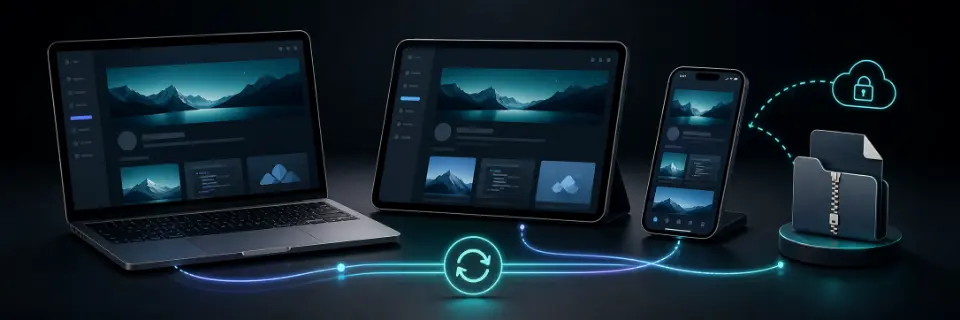
Move your site between devices
As a guest, your draft lives in your browser for the current session, not on our servers. That is great for privacy, but it means a guest draft belongs to one browser session on one device — and it's gone when the browser closes. This tutorial explains how a free account changes that.
In this tutorial
Understand where your draft lives
As a guest, your draft autosaves in the browser on every edit — refresh the page mid-session and it restores exactly where you were. Undo and redo work the whole time.
But the draft lasts only for that browser session: close the browser and it is discarded. Nothing is uploaded until you choose to sign in, so if you're staying a guest, export your ZIP before you close.
Sign in to sync
Create an account with your email and a password. On sign-in, your current guest draft migrates to the server automatically and becomes a synced site under My Sites.
From then on, edits save to the server as well as locally. Open My Sites on any device, hit Open, and continue where you left off.
Edit anywhere, safely
If a site exists both locally and on the server — say you edited on two machines — the editor loads whichever copy is newer, by comparing timestamps. An old draft on a second laptop can never silently overwrite yesterday's work.
A free account saves your progress on up to 3 sites; Premium raises that to 10. Duplicate or delete them any time from My Sites.
Keep the ultimate backup
The exported ZIP is the most portable copy of your site there is: it opens in any browser, hosts anywhere, and depends on nothing — including us. Keep one with your files and your portfolio survives any browser, account, or service.
Tip: Export after any significant editing session. It costs one click and it's the backup no sync bug can touch.
Reference-style reading instead? See the documentation.