Guides for building, editing, exporting, and hosting a PortfolioDIY site.
Getting started
Build your first portfolio
You do not need an account to start. Go to Start Building, pick any of the 60 templates, and the editor opens with realistic sample content already in place.
The workflow is simple: replace the sample story with your own. Edit fields in the right panel, watch the preview update, and export when the page is ready to share.
1Pick a template that matches your field — the categories map to career domains.
2Replace the sample name, headline, and bio in the Content panel.
3Add your projects, skills, and experience through the list fields.
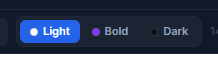
4Choose a theme (Light, Dark, or Bold) in the Style panel.
5Hit Export to download your site as a ZIP.
Do I need an account?
No. As a guest you can build, preview, and export without an account. Your draft autosaves for the current browser session — refreshing the page is fine, but when you close the browser the draft is gone.
A free account is what makes your work permanent: sites are saved to your account, you can keep several going at once, and you can continue on another device. If you edit on two devices, the editor always loads whichever copy is newer.
The editor
System-first editing
PortfolioDIY does not use a free-positioning canvas. Every template is built on a design system: you edit content fields and design tokens, and the layout keeps its structure.
That constraint is intentional. It lets you change the portfolio without accidentally breaking the template on mobile or creating inconsistent spacing.
Sections, content, and style
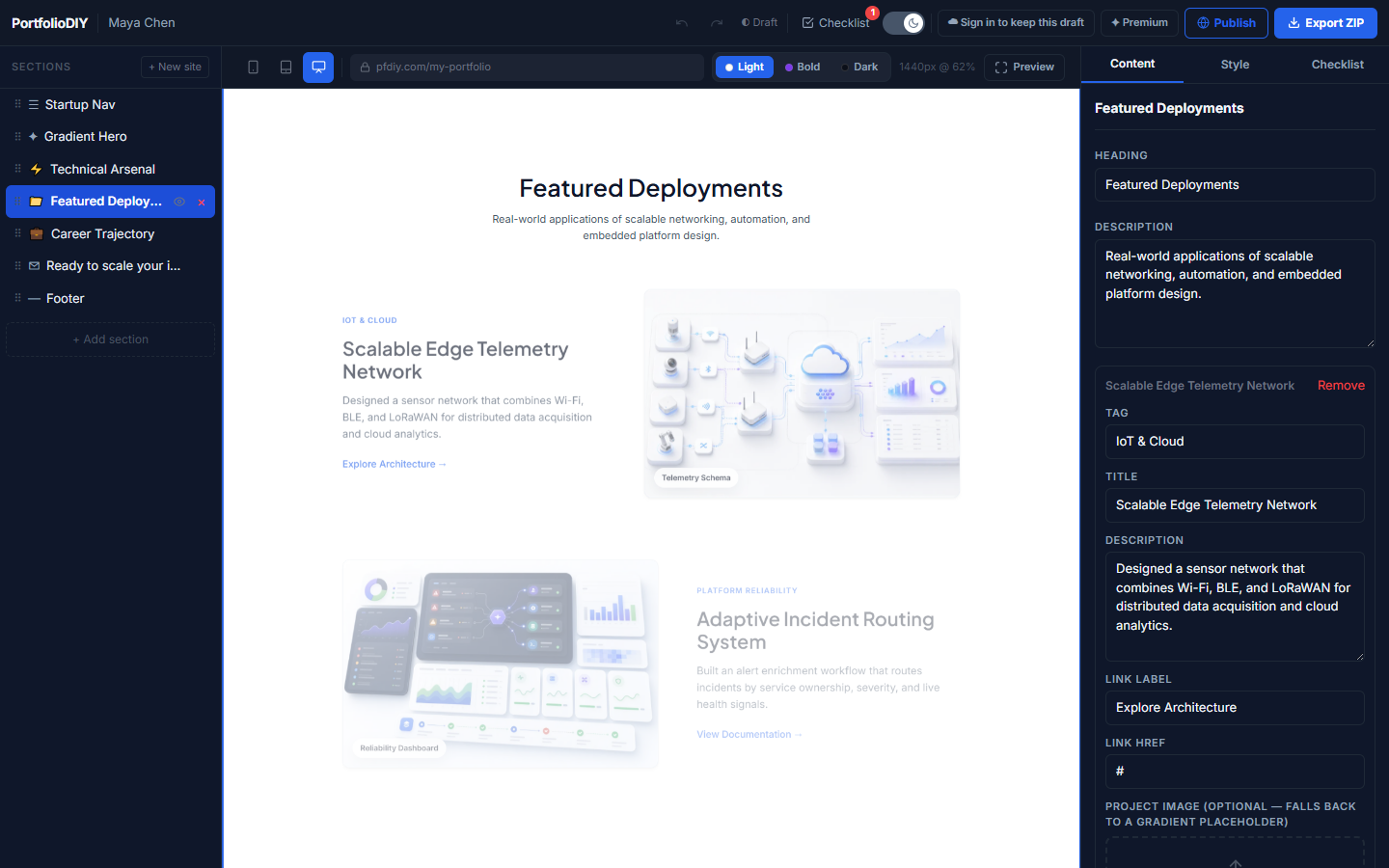
The left rail lists your page's sections — hero, about, projects, and so on. Drag to reorder them, or toggle sections you don't need. Click any section and its fields open in the panel on the right.
The right rail has two tabs. Content holds the field forms for the selected section: text fields, list editors for repeating items like projects, and image fields with drag-and-drop upload. Style holds the design tokens: theme, colors, typography, and spacing.
Selecting "Featured Deployments" in the left rail opens its heading, description, and project fields on the right.
The recruiter checklist
Before you export, the lint panel runs a rule-based checklist over your site: a missing contact link in the hero, low color contrast, images over the weight budget, and broken links all get flagged with a pointer to the exact field to fix.
The checklist is there to catch mechanical issues before a recruiter or hiring manager sees them.
The editor's own light/dark mode
The small switch in the top bar only changes how the editor workspace itself looks (light or dark chrome) — it has nothing to do with your site's theme. Your portfolio keeps whatever theme you picked in the Style panel regardless of which mode you edit in.
This toggle is for your comfort while editing — it never affects the exported site.
Themes & tokens
Templates vs themes
A template defines the section structure and starter content. A theme defines visual settings such as color, contrast, and typography.
Many templates offer Light, Dark, and Bold presets. Fixed-identity templates keep the preset switcher hidden, but their token controls remain available.
One click swaps every color and contrast token across the whole site — nothing else needs to change.
Design tokens
Under the theme sits a token system: primary color, type scale, spacing rhythm. Change a token and every section that references it updates together — that's what keeps the design coherent no matter what you edit.
The tokens you set in the editor ship in your export as CSS custom properties, so post-export tweaks stay one-line changes.
Exporting
What's in the ZIP
The export is a complete static site: index.html with semantic markup, a single BEM-structured stylesheet driven by your design tokens, minimal vanilla JavaScript, your optimised images, and a README with deploy instructions.
There are no external scripts, no trackers, and no runtime dependency on PortfolioDIY. SEO artifacts — JSON-LD structured data, OG tags, sitemap.xml, robots.txt — are generated automatically from your content.
One click packages the whole site — no account needed to try it.
The watermark & Premium
Free exports include a small "Made with PortfolioDIY" badge in the footer, a generator meta tag, and an HTML comment. Everything else is identical to a Premium export.
Premium ($7, one-time, 12 months) makes every export from your account ship clean, across all your sites. It also lets you publish one portfolio at pfdiy.com/your-name without buying a domain or hosting.
Hosting guides
GitHub Pages (free)
Create a repository named yourusername.github.io, unzip your export into it, commit, and push. Your portfolio is live at that address within a minute. The README in your export walks through each step.
Netlify, Vercel, Cloudflare Pages (free)
All three accept a drag-and-dropped folder. Unzip the export, drop the folder onto their dashboard, and you get a live URL immediately — plus free HTTPS and a CDN.
Shared hosting / cPanel (~$3/month)
Upload the ZIP through cPanel's file manager into public_html and extract it there. The export includes an .htaccess tuned for shared hosting — caching headers and clean URLs work out of the box.
Custom domains
For self-hosted exports, your domain points at your chosen host, not at us. Every host above supports custom domains on their free tier; the export README links to each host's DNS instructions.
Hosted profiles (included with Premium)
Premium is the watermark-removal purchase; publishing one portfolio online is included, not sold as a separate hosting plan. Hit Publish in the editor, choose your address at pfdiy.com/your-name, and your site goes live as a snapshot of its current state. No domain or hosting plan is required.
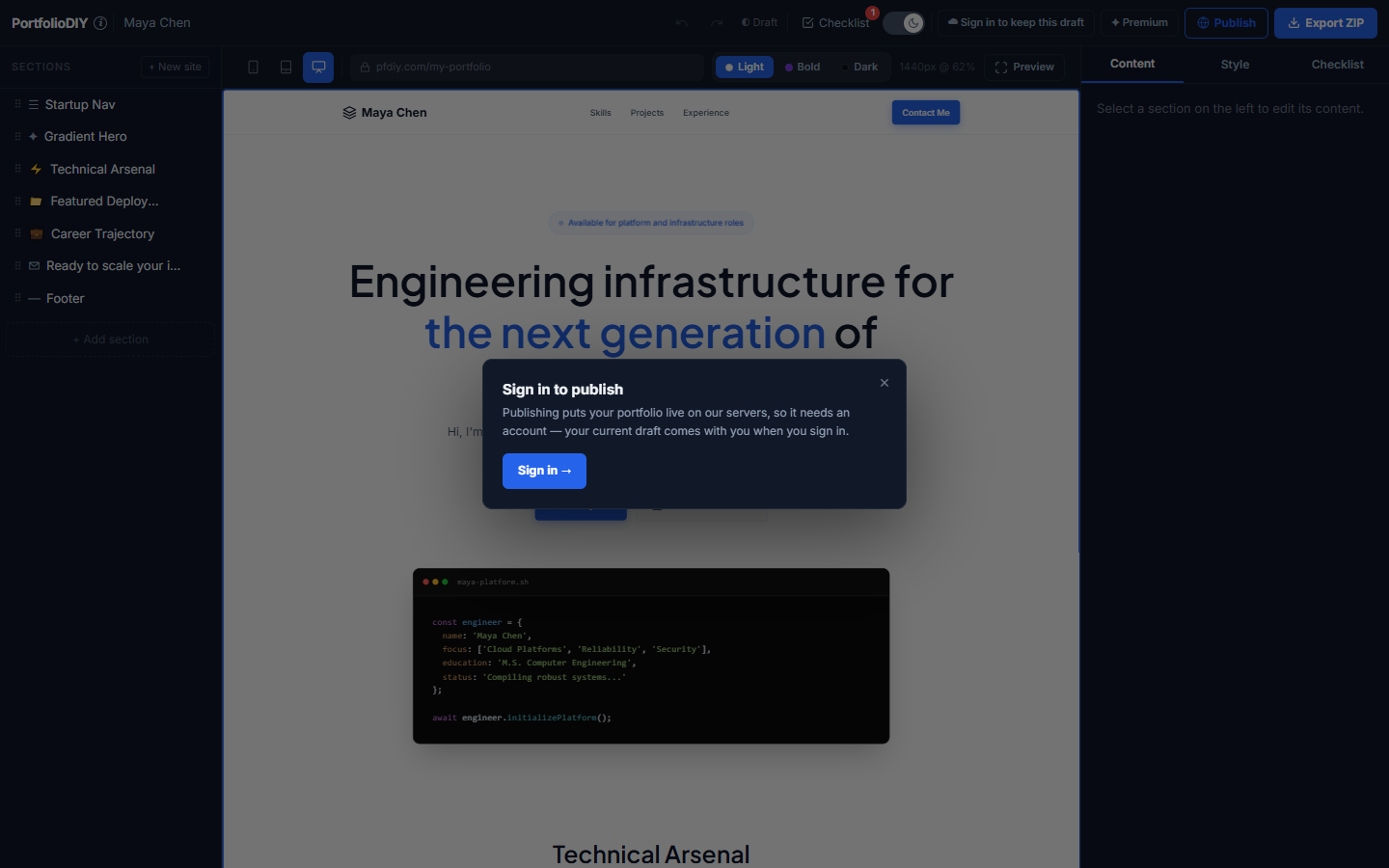
Publishing needs a free account, since it puts your portfolio live on our servers. If you're still a guest when you click Publish, you'll see a quick sign-in prompt first — your current draft comes with you, nothing is lost.
Edits never change the live page until you republish — so you can keep working safely. Republish or unpublish anytime; one live profile per account. When your Premium term ends, the hosted page stays online for a short grace period. Pay for another 12 months during that time and it continues without being taken down. Your exported code keeps working everywhere else either way.
Clicking Publish as a guest — sign in once, and your draft carries over to publish it live.
Account & billing
The only thing we charge for
Premium is $7, paid once. For 12 months, every export from every site on your account ships without the PortfolioDIY badge, and you can publish one portfolio online. There is no subscription or auto-renewal.
If checkout succeeds but your export still shows the badge, wait a few seconds and re-export. The entitlement can lag the payment by a moment. Still stuck? Email us and we will help.
Deleting your data
Guests: your draft only lives for the browser session, so closing the browser removes it by itself. Signed-in users: deleting a site from My Sites removes the server copy, and account deletion removes everything. Your exported code, of course, is yours and unaffected.